![Horizontal-10.png]](https://support.minga.io/hs-fs/hubfs/Horizontal-10.png?height=40&name=Horizontal-10.png)
Summary (click to navigate):
Multiple activities in a period for a single teacher
Registration via student profile
Kiosk Check in for additional teachers
User List feature Enhancements
Key Updates:
Multiple activities in a period for a single teacher
Previously, Minga restricted teachers to managing only one activity per FlexTime period. This meant teachers had to schedule different activities at different times or share responsibilities with other staff. We’ve eliminated that limitation.
Teachers and Admins can now assign multiple activities to the same teacher during a single FlexTime period.
Who's it for?
Teachers and Admins who need to have multiple activities per FlexPeriod.
How It Works:
-
Navigate to the FlexTime module to create or manage a FlexTime period.
-
Head over to the Activities page.
-
Select multiple activities and assign them to the same teacher within the same period.
.png?width=688&height=386&name=Inline%20Images%20%26%20Video%20(1).png)
Why It Matters:
-
Empowered Teachers: Teachers gain greater control over their time and student engagement strategies by hosting multiple groups or activities simultaneously.
-
Increased Efficiency: Schools can now optimize staffing and scheduling—no more redundant time slots or staff shuffling.
-
Better Learning Experiences: Students benefit from expanded access to varied activities and interventions in shared time blocks.
Registration via student profile
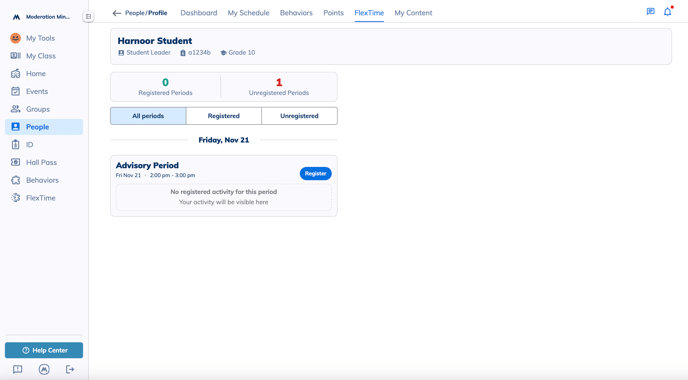
Previously, only Admins had the convenience of registering students into FlexTime activities from the student’s profile. Teachers had to navigate through the entire FlexTime roster—an inefficient process for quick updates. We’ve streamlined that workflow.
Now, both Admins and Teachers can register students into FlexTime activities directly from the student’s profile page.
Who's it for?
Teachers and Admins who need to register students from their profile page view.
How It Works:
-
Open a student’s profile.
-
Navigate to the FlexTime section.
-
Click the Register button and assign an activity.
Why It Matters:
-
Streamlined Registration: Save time and reduce hassle—no more digging through rosters.
-
Simplified Workflows: A faster, more intuitive way to enroll students into the right activities.
-
Fewer Errors: By registering directly from the student’s profile, staff can avoid scheduling mistakes and ensure accurate enrollment.
Kiosk Check in for additional teachers
Until now, only the lead teacher could check students in using Kiosk Mode for FlexTime activities. This caused delays when students arrived before that teacher or when activities spanned multiple entry points.
Now, any teacher assigned to an activity can launch Kiosk Mode and check in students—no more bottlenecks, no more missed attendance.
How It Works:
-
Navigate to My Tools.
-
Select Kiosk Mode and choose Check In as the kiosk type.
-
Select your assigned FlexTime activity.
-
Start scanning student IDs or have them enter their student numbers manually.
Why It Matters:
-
Increased Operational Efficiency: Teachers no longer have to wait for a specific colleague to begin check-ins. Everyone assigned to an activity can act immediately.
-
Enhanced Staff Collaboration: Supports a team-based model where all staff members contribute to student oversight and attendance tracking.
-
More Accurate Attendance: With multiple teachers empowered to check in students, attendance records are more complete and timely.
User List Feature Enhancements
Default Visibility Setting
Minga now allows admins to set a default visibility option for new user lists, saving time and improving cross-staff collaboration.
Who it’s for: Admins
How It Works:
-
Go to the People section in Minga.
-
Click on the new Settings tab.
-
Toggle "Make new user lists public by default" ON or OFF.
This setting will automatically apply the chosen visibility to all future lists.
Why It Matters:
- Saves Time: No more adjusting visibility settings manually every time a list is created.
- Improves Collaboration: Teachers and staff can easily access and act on shared lists.
- Reduces Miscommunication: Prevents missed updates caused by hidden lists.
Whether you're rolling out class rosters or building support teams, this small update brings big clarity.
Bulk Change Visibility
What’s New
Admins can now update the visibility of multiple user lists at once—no more changing them one by one.
Who it’s for: Admins
How it works:
-
Go to the People section.
-
Click the new User Lists tab.
-
Select the lists you want to update.
-
Choose “Set as Private” or “Set as Public” to change visibility in bulk.
Why it matters
-
Mass Efficiency: Make updates to many lists at once, saving hours of admin time.
-
Reduce Admin Fatigue: Eliminate repetitive tasks and free up energy for more meaningful work.
-
Centralized Control: Maintain consistent access settings across staff with just a few clicks.
A powerful upgrade for admins managing high-volume list visibility.
Dynamic Auto‑Generated User Lists
What’s New
Minga now supports auto‑generated user lists that update themselves based on criteria you define—no more manually adjusting lists when students enroll, transfer, or change schedules.
Who it’s for: Admins who manage frequently changing student groups and need lists that reliably stay current without manual intervention.
How it Works
-
Navigate to the People section.
-
Click on the new Settings tab.
-
Toggle Auto-Generated Lists ON or OFF to enable automatic updates.
Why it Matters
-
Always Up-to-Date: Lists stay accurate in real time as student data changes—no syncing or manual edits.
-
Less Manual Work: Eliminates tedious tracking and maintenance so admins can focus on higher-impact tasks.
-
Greater Personalization: Build dynamic lists based on role, teacher, subject, grade level, or other school-specific criteria.
Smarter, self-maintaining lists that work for your school—automatically.
FAQs:
- Can a teacher manage more than one activity in a FlexTime period? Yes. Teachers can now be assigned multiple activities within the same FlexTime period. This allows them to manage different groups of students at once—perfect for advisory periods, intervention blocks, or co-taught classes.
- How do I register a student for FlexTime without opening the full roster? Open the student’s profile, go to the FlexTime section, and click Register. You can then assign them directly into the desired activity. This new workflow is faster, reduces errors, and saves valuable time for both Admins and Teachers.
- Can multiple teachers really check students into the same FlexTime activity at the same time? Yes! As long as a teacher is assigned to the activity, they can launch Kiosk Mode from their account and begin checking in students independently. This helps reduce bottlenecks at busy entry points and ensures accurate attendance even if the lead teacher isn’t present.