![Horizontal-10.png]](https://support.minga.io/hs-fs/hubfs/Horizontal-10.png?height=40&name=Horizontal-10.png)
Summary (Click to Navigate):
Key Updates:
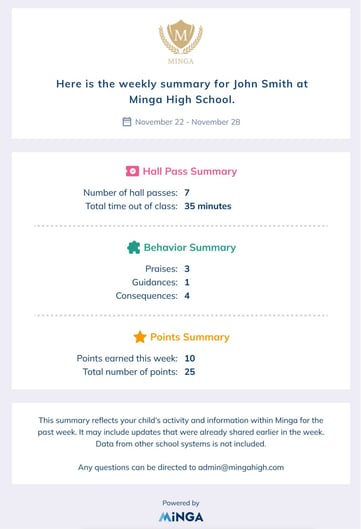
Weekly Parent Summaries – Proactive transparency with zero admin effort
Automate family engagement by delivering a high-impact, consolidated digest of student activity directly to parents’ inboxes every weekend.
Who’s it for?
Admins and Owners on Plus or Premium plans who want to bridge the communication gap between school and home without adding "send emails" to their weekly to-do list.
How it works?
Once configured, Minga handles the data aggregation and delivery, keeping families aligned with student progress automatically.
-
Set-and-Forget Scheduling: Emails are dispatched every Saturday at 10 pm PST, giving parents a full day to review activity before the new school week begins.
-
Total Content Control: Use simple toggles in the customization menu to choose which "signals" to share—including Hall Pass frequency, Points earned, and behavior updates.
-
Personalized Automation: Use messaging variables like
${studentNames}and${schoolName}to ensure every digest feels like a personal update rather than a generic notification.
Why it matters?
Visibility is the best remedy for friction. This feature transforms raw school data into a tool for family partnership:
-
Eliminate "Sunday Scaries": By providing a proactive look at the week's patterns (like Hall Pass usage or behavior trends), you ensure parents are informed and aligned before students even walk through the door on Monday.
-
Celebrate the Wins: It’s not just about tracking; it's about momentum. Highlighting Points earned gives parents a reason to celebrate student success, reinforcing positive behavior at home.
-
Administrative Scalability: Traditional parent outreach is time-consuming. This system provides professional, data-driven communication to your entire community with nearly zero ongoing effort from your staff.
My Class – Easily drag and drop students between groups
Eliminate the friction of manual group management, allowing teachers to instantly refine randomly generated groups with a simple, intuitive interface.
Whose it for?
Teachers who utilize small-group instruction, collaborative projects, or differentiated learning stations and who need to make quick edits to the randomly generated groups.
How it works?
Once a teacher generates randomized groups within the My Class > Class Groups tab, they are no longer stuck with the initial results.
-
Intuitive Interface: Teachers simply click on a student’s name and "drag" them from one group to another.
-
Instant Re-shuffling: The interface updates in real-time, allowing for rapid adjustments to group composition (e.g., moving a student from Group A to Group D) with a single motion.
Why it matters?
Randomization is a great starting point, but it lacks "teacher's intuition." This tool bridges the gap between automation and classroom reality:
-
Balanced Leadership: It prevents "stacking" all your strongest leaders in one group, ensuring every team has a designated anchor.
-
Instructional Equity: Teachers can instantly separate students who might struggle if grouped together or ensure a better mix of academic needs for peer-to-peer support.
-
Flow Preservation: Because it’s a quick drag-and-drop, the teacher can adjust for late arrivals or behavioral "changes of scenery" mid-lesson without pausing the entire class to navigate complex settings.
FlexTime: Multi-Day Cloning
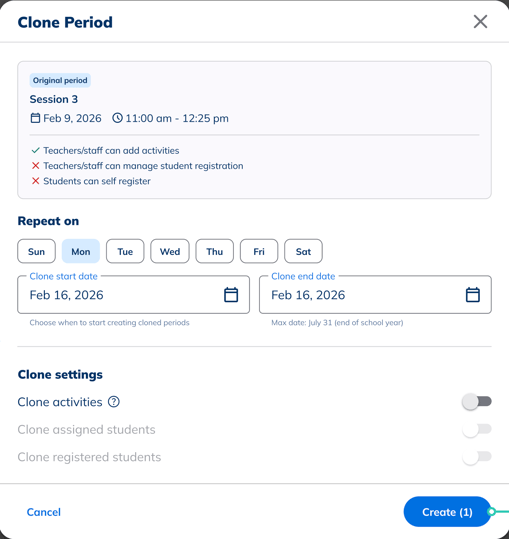
A new modal to allow admins to clone FlexTime Periods over a range of dates and days. This is currently behind a closed beta test and will be available to Premium and Plus customers once the beta test has concluded.
Who is it for?
For School Administrators and FlexManagers. It’s specifically designed for the "architects" of the school schedule—the people responsible for the heavy lifting of setting up semester-long calendars, enrichment blocks, and intervention periods.
How it works?
Located under FlexTime > Periods > Clone, this feature introduces a high-efficiency modal that moves beyond simple one-to-one copying:
-
Range Selection: Admins can select a start and end date for an entire semester or month.
-
Custom Recurrence: You can toggle specific days of the week (e.g., "Every Tuesday and Thursday") to match your school’s unique rotating schedule.
-
Smart Filtering: It allows you to bypass holidays, professional development days, or exam weeks by defining the specific range and active days.
Why it matters?
Scheduling FlexTime shouldn't be a part-time job. This update addresses the "tedium tax" of school administration:
-
Massive Time Recovery: It effectively collapses hours of repetitive data entry into a few seconds of configuration. You "build once, deploy everywhere."
-
Error-Proof Consistency: When you clone manually, it’s easy to miss a checkbox or mistype a start time on day 45 of the semester. This tool ensures every mirrored period is an exact, "pixel-perfect" copy of the master.
-
Strategic Agility: Because it’s so fast to deploy, admins can spend less time clicking and more time analyzing whether the schedule actually meets student needs.
FlexTime: Period Visibility Setting
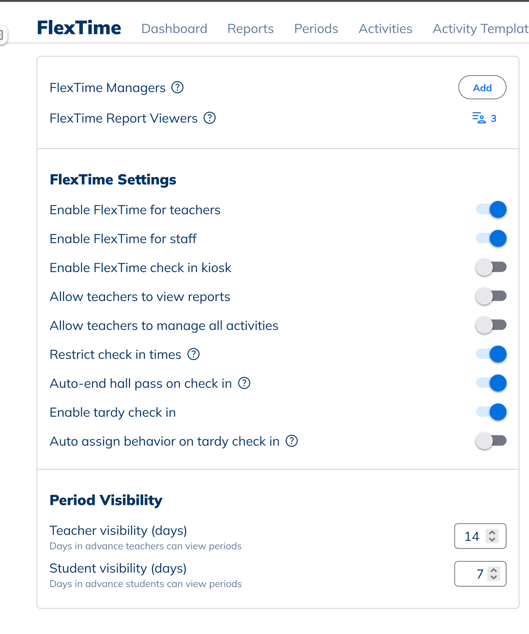
New settings to specify how many days in advance should teachers and students be able to view the periods.
Whose it for?
This is a strategic tool for Owners and FlexManagers who need to plan far in advance without causing confusion. It also directly benefits Students and Teachers by shielding them from "work-in-progress" schedules.
How it works?
Located under FlexTime > Settings > Period Visibility, this feature acts as a digital curtain for your school calendar:
-
Advance Window: Admins can specify exactly how many days in advance a FlexTime period becomes visible to the rest of the school.
-
Controlled Access: Even if an admin has cloned periods for the next three months, they can set the visibility to "7 days," ensuring students only see what is relevant for the upcoming week.
-
Automated Rolling Reveal: As time passes, the system automatically "unveils" new days based on your chosen settings, requiring no manual intervention once set.
Why it matters?
Preparation often happens in drafts, and this feature ensures the "messy middle" of scheduling stays behind the scenes:
-
Proactive Admin Planning: Empowers admins to build out complex, semester-long schedules at their own pace without triggering premature notifications or a flood of student questions.
-
Clean Digital Workspace: By hiding dates that aren't yet actionable, you significantly reduce "cognitive load." Students and teachers stay focused on the current week rather than getting lost in a sea of future dates.
-
Standardized Expectations: It allows schools to establish a "Release Cadence." When the schedule for next week consistently "goes live" every Friday at 4:00 PM, it builds a reliable habit for the entire student body.
FlexTime: Bulk Delete Periods
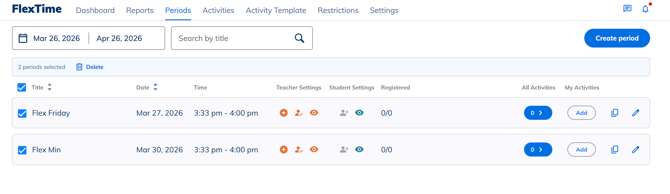
Admins can now select/multi-select/select all FlexTime periods and delete them in bulk without having to delete each instance individually.
Whose it for?
This is a "save-the-day" tool for Owners and FlexManagers. It’s for the person who needs to pivot quickly when the school calendar changes unexpectedly—whether due to a weather emergency, a sudden assembly, or a simple clerical error during the cloning process.
How it works?
Located under FlexTime > Periods, this feature moves away from the tedious "one-by-one" deletion method:
-
Multi-Select Interface: Admins can now use checkboxes to select specific periods, multiple rows, or even "Select All" with a single click.
-
Batch Removal: Once the desired periods are highlighted, a single "Delete" action clears them from the schedule simultaneously.
-
Range Specificity: It allows you to target a specific week or a series of mismatched entries without affecting the rest of your pristine semester schedule.
Why it matters?
In a busy school, mistakes happen and plans change. This feature provides the "Undo" button that admins have been craving:
-
Instant Error Correction: If you accidentally cloned an enrichment period for the wrong month, you don't have to spend your lunch break deleting 30 individual entries. You can vanish the error in seconds.
-
Agility in Emergencies: When a "Snow Day" or a last-minute pep rally is announced, you can wipe the affected date’s schedule clean instantly, preventing students from checking into sessions that are no longer happening.
-
Clean Data Management: It removes the manual labor from schedule maintenance, ensuring that your FlexTime calendar remains accurate and clutter-free with minimal effort.
FlexTime: Updated Activity Types
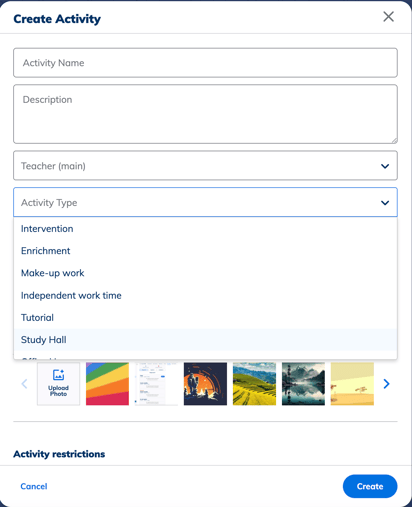
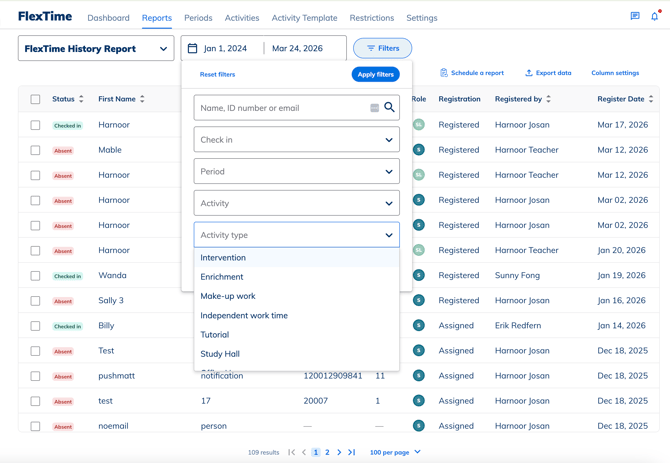
Now, the activity types dropdown menu to align with real school activity types (Intervention, Enrichment, Independent work) giving better reporting options to reflect who is attending what!
Whose it for?
This update is a major win for Principal-level leadership and District Administrators who need high-level data, as well as Teachers who need to quickly categorize their classroom sessions for daily organization.
How it works?
Located within FlexTime > Activity Templates and reflected in the Reports section, the system now features a standardized "Activity Type" dropdown:
-
Academic Alignment: Users can tag any period as Intervention, Enrichment, or Independent Work—terms that mirror real-world school terminology.
-
Smart Reporting: When pulling a FlexTime report, admins can now apply a global filter to isolate these specific categories.
-
Scheduled Insights: Schools can automate these filtered reports to be delivered directly to stakeholders on a recurring basis.
Why it matters?
Data is only as good as its categorization. This feature moves FlexTime from a simple scheduling tool to a powerful "compliance and coaching" engine:
-
Precision Reporting: Instead of guessing where time is spent, a Principal can instantly see exactly how many minutes of "Intervention" were delivered to at-risk students this month versus "Enrichment" for others.
-
Compliance Ready: Many states and districts require documented proof of "Instructional Minutes" for specific programs. These tags provide a verifiable digital paper trail that is audit-ready.
-
Resource Optimization: It allows leadership to see if the school’s actual schedule matches its strategic goals. If the goal is "Closing the Gap," but reports show 80% of time is "Independent Work," it provides the data needed to pivot and re-focus.

FlexTime: Undo Check-In
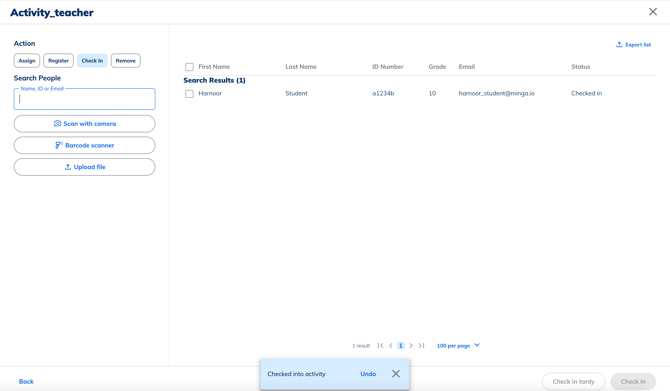
Check in a student by mistake? No problem! Teachers now get a grace period of ~15s to undo a FlexTime Check In if it is processed mistakingly.
Whose it for?
This is a high-impact "quality of life" feature for Teachers. It’s built for the educator in the middle of a busy transition—balancing a tablet or laptop while a line of students waits to be checked into an activity.
How it works?
Located within the FlexTime > Activities check-in interface, this feature adds a safety net to the attendance process:
-
The "Grace Period" Window: After a teacher clicks the check-in button for a student, a temporary "Undo" option appears for approximately 15 seconds.
-
Instant Reversal: If the teacher realizes they clicked the wrong name (e.g., "Leo A." instead of "Leo M."), they can tap "Undo" to immediately reset that student's status.
-
Seamless Flow: The action happens right on the roster screen, so the teacher never has to navigate away or open a separate "Attendance Correction" menu.
Why it matters?
In a fast-paced school environment, "finger slips" are inevitable. This feature turns a potential data headache into a non-event:
-
Data Integrity Protection: It keeps attendance records accurate at the source. Instead of an admin having to fix a mistake later, the teacher corrects it before the data is even finalized.
-
Stress Reduction: Teachers no longer have to worry about a stray click turning into a permanent administrative error. It gives them the confidence to move through their roster quickly.
-
Time Preservation: By allowing for instant correction, it eliminates the "back-and-forth" emails between teachers and the front office to fix accidental check-ins.
Hall Pass: Event-Based Real-Time System
My Class and Hall Pass Dashboard now updates automatically on any event-change without requiring a manual refresh.
Whose it for?
This is a critical update for Teachers and Hallway Monitors who rely on the Hall Pass Dashboard and My Class view to maintain school safety and student accountability throughout the day.
How it works?
Minga has transitioned from a manual "pull" system to an automated "push" system for data:
-
Live Synchronization: The dashboard now utilizes an event-based architecture. When a student starts or ends a pass, the change is broadcasted instantly.
-
Zero-Latency Updates: Staff members no longer need to click a "Refresh" button or wait for a page reload to see who is currently in the hallway.
-
Cross-Platform Consistency: Whether viewed on a desktop in the classroom or a mobile device in the hall, the data updates simultaneously across all screens.
Why it matters?
In school security, a ten-second delay can be the difference between knowing where a student is and losing track of them:
-
One Single Truth: It ensures every staff member is looking at the exact same data at the exact same second, eliminating "ghost passes" or outdated status indicators.
-
Reduced Administrative Friction: Teachers can keep the dashboard open as a background monitor, trusting it to stay accurate while they keep their focus on instruction.
-
Enhanced Safety: If a pass expires or a student is flagged, the information is immediate, allowing for faster intervention.
Hall Pass: Navigate to Student Profile
Hallway monitors can now click on the student name in the dashboard to directly navigate to the student’s profile.
Whose it for?
This is a high-speed efficiency tool for Hallway Monitors, Security Personnel, and Deans who are actively managing student movement and behavior in real-time.
How it works?
The Hall Pass Dashboard now acts as a direct portal to student records:
-
Hyperlinked Identification: Every student name on the dashboard is now a clickable link.
-
Direct Deep-Linking: Clicking a name bypasses the general "People" search and takes the staff member directly to that specific student’s full profile page.
-
One-Click Access: It collapses a multi-step search process into a single interaction.
Why it matters?
When a staff member stops a student in the hallway, they often need context immediately to make a fair decision:
-
Instant Student Context: Monitors can instantly check for "waiver stickers" (e.g., medical or behavioral accommodations) without making the student wait while they manually search for a profile.
-
Data-Driven Discipline: Accessing a student’s behavior history or active stickers on the spot allows for more informed, consistent enforcement of school policies.
-
Operational Speed: By removing the need to close the dashboard, open a search bar, and type in a name, Minga saves precious seconds during busy passing periods.
FAQs
-
If I use the new Multi-Day Cloning tool for FlexTime, what happens if one of those days is a holiday or a professional development day?
You have total control! The cloning modal includes a Customizable Recurrence setting. Instead of a blind copy-paste, you can select specific days of the week and a custom date range. This allows you to intentionally skip holidays or exam weeks during the initial setup, ensuring your calendar only populates on active school days.
Can I customize the new "Activity Types" (Intervention, Enrichment, Independent Work), or am I limited to those three?
To ensure data consistency and "compliance-ready" reporting across the entire district, these types are currently standardized to align with real-world school requirements. However, you can still use the Activity Templates to give your sessions unique names—the "Activity Type" simply serves as a high-level category tag for easier filtering and reporting.Is the 15-second "Undo Check-In" window adjustable? What if I miss the window and still need to fix an error?
The 15-second grace period is a fixed system setting designed for instant "on-the-spot" corrections. If you miss this window, don't worry—you can still correct the student's status through the standard attendance editing process. The "Undo" button is simply a "fast-track" for those immediate finger-slips.