![Horizontal-10.png]](https://support.minga.io/hs-fs/hubfs/Horizontal-10.png?height=40&name=Horizontal-10.png)
First: See How Many Students have Checked In for Today's Flex Period in the FlexTime Manager Dashboard
Step by Step:
- Navigate to the Dashboard tab in FlexTime Manager
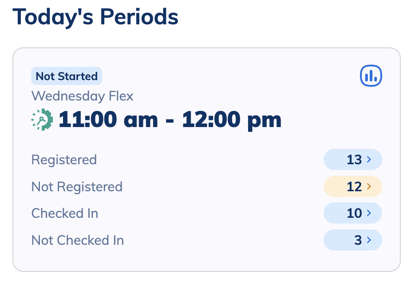
- Click on the number next to Checked In underneath your desired FlexTime period to see a list of students who attended that Flex period.
- Click on the number next to Not Checked In to see a list of students who were registered but did not attend that Flex period.
Second: See How Many Students have Checked In/Not Checked In for each Flex Activity for Today's Flex Period
Step by Step:
- Navigate to the Dashboard tab in FlexTime Manager
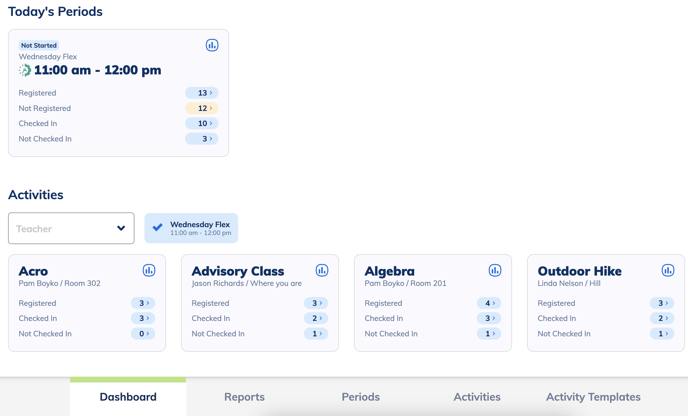
- Click on the number next to Checked In underneath your desired FlexTime Activity to see a list of students who attended that Flex Activity.
- Click on the number next to Not Checked In to see a list of students who were registered but did not attend that Flex Activity.
Third: See a Detailed Attendance Report for all your Flex Periods and Activities
Step by Step:
- Navigate to the Reports tab in FlexTime Manager
- Select "FlexTime History" report, date range, and Check In Status
- Click "Apply Filter"
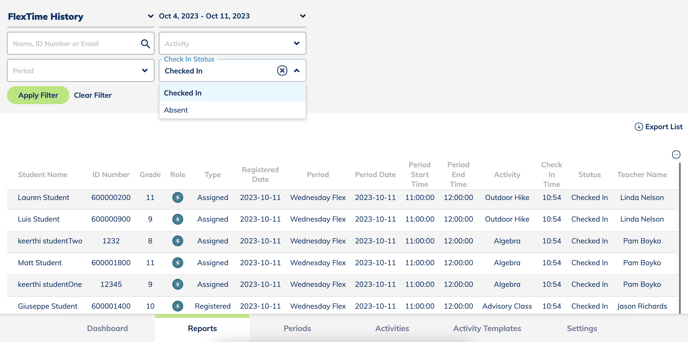
- You can further filter the report by Flex Period or Flex Activity.
- Search for a specific student's name to generate their Flex reporting.
- Click "Export List" to export that report and email those students accordingly.
- Use these reports to see which activities are registered for but skipped!
Video:
Archive a FlexTime History Record
Archive FlexTime history records if a student is checked into a FlexTime activity in error.
Step by Step:
- Navigate to the Reports tab within FlexTime
- Select FlexTime History report from the dropdown menu
- Scroll over to the far right
- Click the Archive icon
- Click Archive in the pop up notification window