![Horizontal-10.png]](https://support.minga.io/hs-fs/hubfs/Horizontal-10.png?height=40&name=Horizontal-10.png)
Permission Level | Owner | Manager | Teacher (creating Flex activities)
Minga FlexTime streamlines your flex period management with an intuitive, user-friendly platform. Our centralized dashboard provides a clear snapshot of all flex periods, including activities, sign-ups, attendees, and absentees, all in one place.
In this article:
- Create FlexTime Periods
- Enable Registration Deadlines
- Cloning FlexTime Periods
- View Upcoming Flex Periods
- Create FlexTime Activity Templates
- Assigning Additional Teachers to a FlexTime Activity
- Clone a FlexTime Activity Template
- Adding Activities to FlexTime Periods
- Creating FlexTime Homerooms
Creating your FlexTime Periods
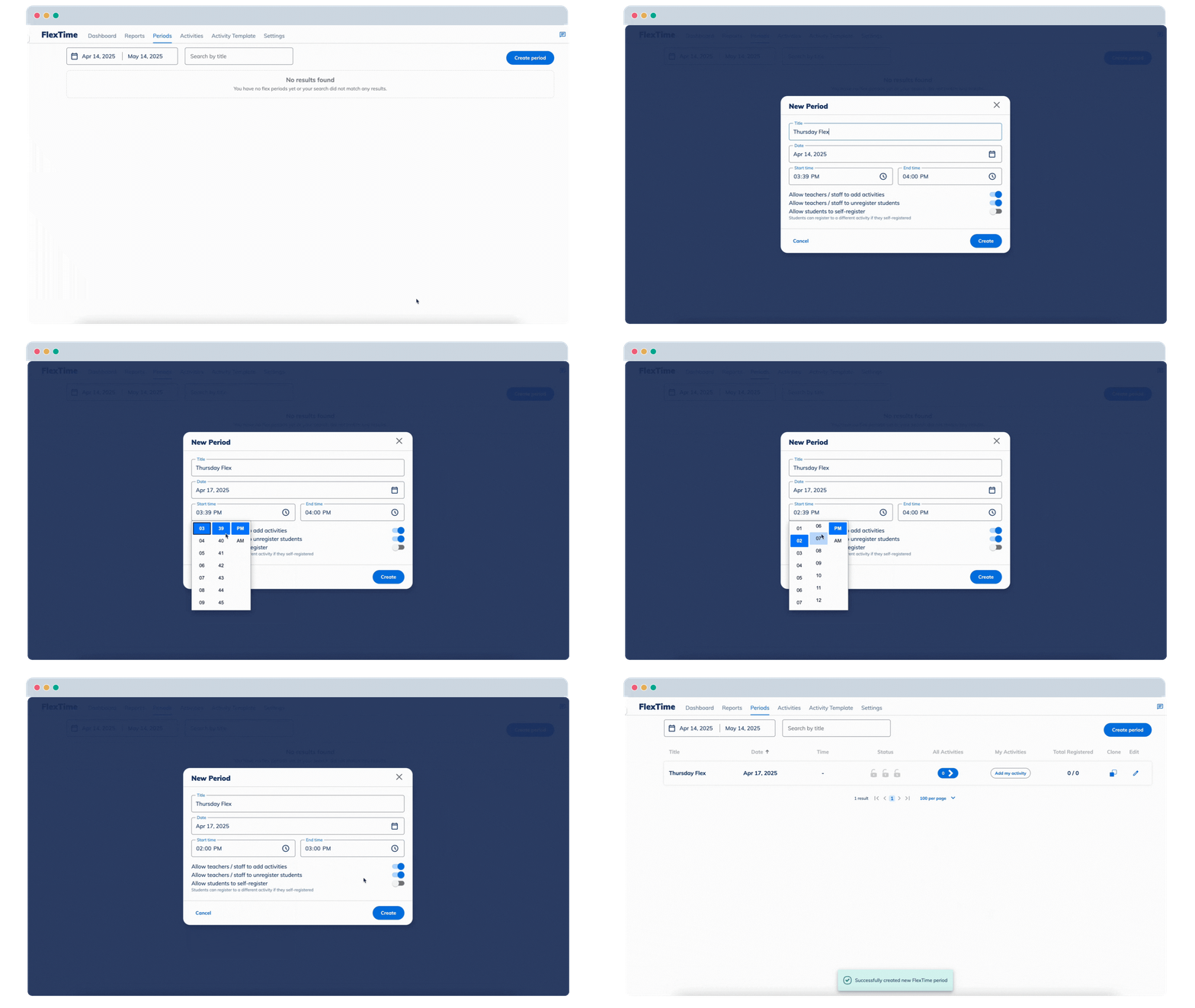
- Select
FlexTime>Periods - Decide when and how often your school's FlexTime periods will occur.
- Click
Create Period - Input 'Title', 'Date', and 'Time'
- Toggle on Allow teachers/staff to add activities if you'd like to allow teachers and staff to add activities to this period.
- Toggle on Allow teachers/staff to register or unregister students to give teachers and staff the freedom to remove or or add students to this flex period.
- Toggle on Enable deadline to prevent teachers and staff from making any changes before or after the activity begins.
- Decide whether students should be allowed to self-register for activities during this period by toggling Allow students to self-register.
FlexTime Registration Deadlines
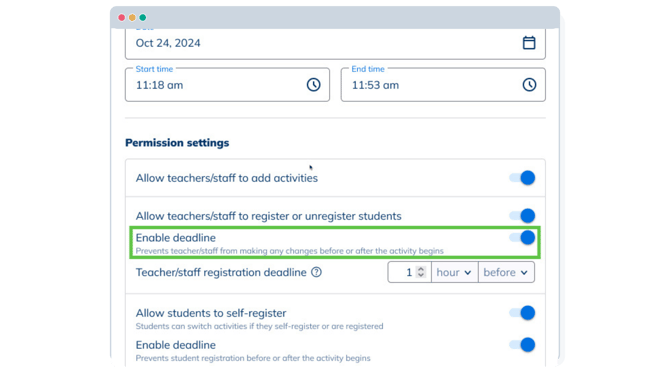
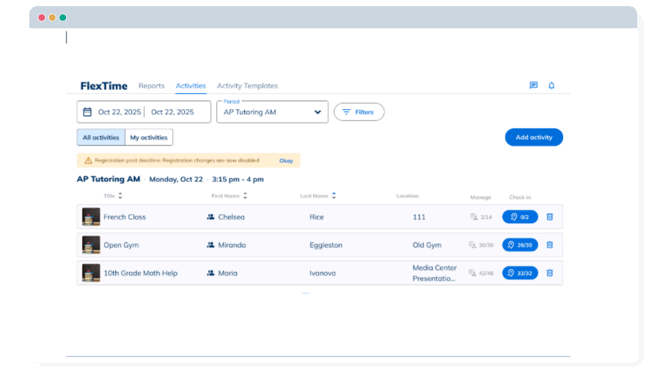
Prevent unexpected enrolments by enabling a registration deadline for teachers and students.
- Navigate to >
FlexTime>Periods>Create Period - Toggle on Enable Deadline under Permission Settings
- Select the deadline for Teacher and Student registrations
Cloning FlexTime Periods
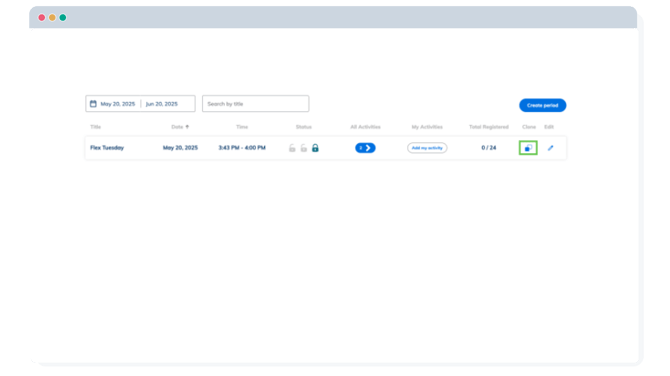
When building out your FlexTime schedule, you can save time by cloning Flex Periods, quickly copy the settings and activities of the cloned Flex period.
📣 Cloning a FlexTime period will include all activities that have been added to that period. If you wish to create a standard schedule of activities that repeats every week, first build out one period and add all the activities, then clone the period.
- Go to
FlexTimeand select thePeriodstab - Click
Clonenext to the Period you want to duplicate. - Edit 'Title', 'Date,' and 'Time' if necessary.
- Now you can toggle
on/offthe option to clone registered and assigned students.
📣If you are choosing to assign and register students to activities and would like this to repeat each period, ensure you do this before cloning the period. Enable "Clone registered students" and "Clone assigned students" to include these students in the cloned period.
View all upcoming Flex Periods
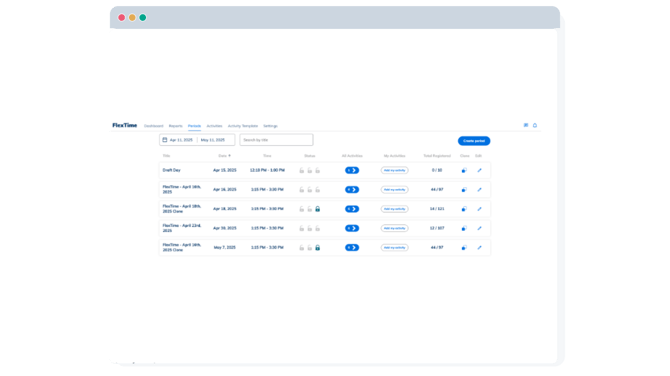
- To see all upcoming available Flex Periods, go to
FlexTimeand select thePeriodstab - From this page, you can view all activities that have been added to periods by clicking the blue buttons below the All Activities column.
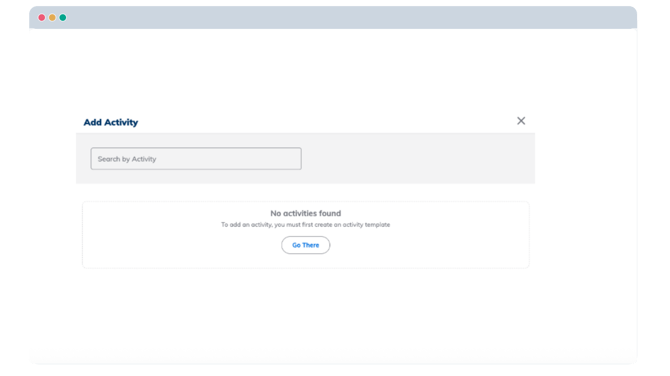
- To add your activity, click
Addunder My Activities - If you do not have any activity templates created, you will need to go to the Activity Template page to create one.
Permission Level | Owner | Manager | Teacher
Create your FlexTime Activity Templates
To add activity to a Flex Period, you'll need to create and configure one in the Activity Templates section.

- Click
Create Activity - Input the activity name, description, activity type, location, and seats available.
- Restrict who can register if you want to restrict attendance by role, lists, stickers, reasons, groups, grades, or by a specific list of selected people.
- Toggle on
Allow Students to Registerto allow students to self-register for that activity.
💡 For easier selection, you can sort the Activity Templates by First/Last Name by clicking on these arrows: 
Assigning Additional Teachers to a FlexTime Activity
For Activities that involve multiple teachers or when the originally assigned teacher is unexpectedly unavailable, you can easily assign additional teachers to the Activity Template to ensure seamless management.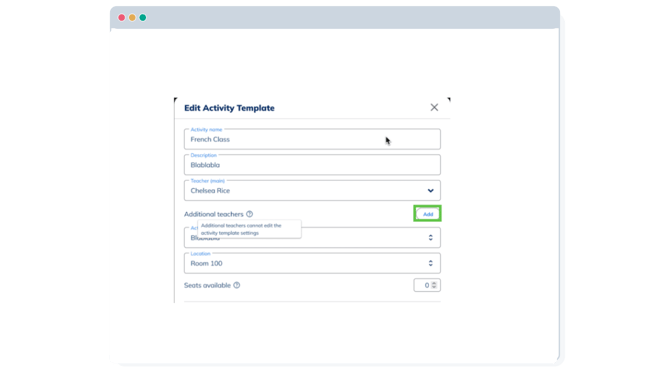
- Navigate to the 'Activity Template' you would like to edit
- Select the
Addbutton next to Additional Teachers - Select the teachers you would like to add by searching by name or by role
📣 Teachers added as Additional Teachers will not have editing ability on the Activity Template; only the primary teacher will have access.
Clone FlexTime Activities
For activities that are similar in structure (such as the same seat limits or student restrictions), you can clone the activity template and then edit it to customize. 
- Navigate to the
Activity Template - Click on the
box iconnext to the blue edit pencil to clone the Activity Template. - A clone of the Activity Template will populate, and you can edit the details.
Adding Activities to FlexTime Periods
Add activities to your FlexTime Period to give students and teachers choices on how to spend their Flex.
Owner or Manager:
-
Under Periods, select the blue icon under All Activities for the period you would like to add activities to
- Select
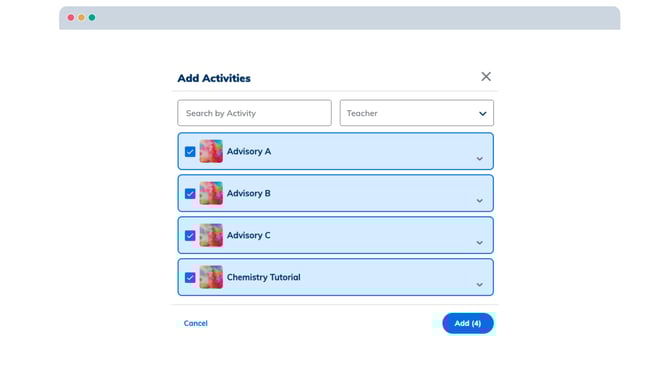
Add activity - Select the Activity by selecting the Teacher from the drop-down menu, searching the activity name, or by scrolling through the list of activities, then click
Add. - To add multiple activities at one time, click the boxes next to the desired activities and click
Add.
Teacher:
- Under Periods, select the
Addicon under My Activities - Select which activity to add to the period, then click
Add
💡Teachers can have multiple activities per FlexTime Period, making managing multiple classes in one block a breeze!
Creating FlexTime Homerooms
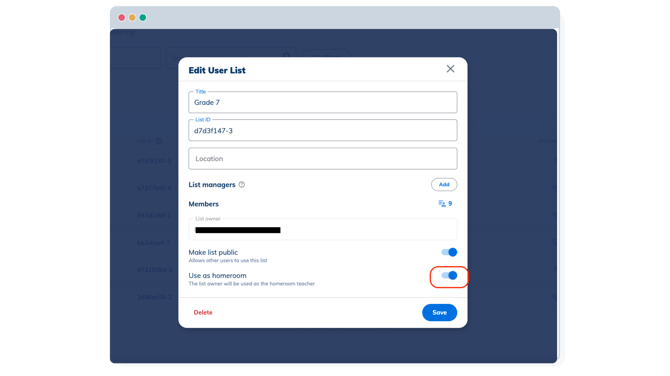
Select which user lists will be set as homerooms for automatic FlexTime registration. The list owner will become the homeroom teacher for all of the students on the user list. When a student is registered to homeroom, they will be registered to the FlexTime activity their homeroom teacher is hosting in that Flex Period.
💡FlexTime Homeroom registration ensures all students are assigned to a FlexTime activity, even if they did not choose one.
Single User List:
- Navigate to
Peopleand then selectUser Lists. - To select lists one by one, click on the
blue edit pencil. - Toggle on Use as Homeroom.
- Click
Save
 Multiple User Lists:
- Navigate to
Peopleand then selectUser Lists. - Select the box next to Title to select ALL lists, or select specific lists by clicking the box next to the list's title.
- Select
Use as Homerooms.