![Horizontal-10.png]](https://support.minga.io/hs-fs/hubfs/Horizontal-10.png?height=40&name=Horizontal-10.png)
Summary (click to navigate):
1. FlexTime setting to allow teachers to manage all activities
2. Select multiple activities at one time when adding to a FlexTime Period
3. Students only see available activities for FlexTime registration
4. Find any student in MyClass
5. Teacher Notes for Students for FlexTime Activities
6. Reporting Permission Options for Teachers
7. FAQs
Key Updates:
FlexTime Setting to Allow Teachers to Manage All Activities:
In a school that uses FlexTime periods, teachers may need to manage and oversee activities even if they are not directly responsible for leading those activities. Now, Owners can turn ON the setting to let teachers register and assign students to other teachers' activities as well.
Earlier, this was released for FlexTime module but now it applies to My Class and student profile as well.
For a wider view of all FlexTime updates, be sure to check out our release notes from December 12th, for the 7.12.0 release.
Who's it for?
Admins and Teachers that need the flexibility to manage multiple FlexTime activities.
How It Works:
Admins:
- Navigate to Settings in the FlexTime module.
- Under FlexTime Settings, turn ON the toggle to allow teachers to manage all activities.
.png?width=670&height=377&name=Inline%20-%20Image%20(2).png)
This setting is toggled OFF by default and can only be toggled ON by someone with the role of Owner.
Teachers:
- Navigate to My Class, select a student. Register/assign them to a Flex activity.
- Navigate to FlexTime tab in a student’s profile. Click on the register button.
Why It Matters:
-
Improved Oversight: Teachers can now monitor all FlexTime sessions to ensure smooth operations and support student engagement.
-
Greater Flexibility: Ideal for large schools, shared supervision models, or schools needing backup support during Flex periods.
-
Enhanced Collaboration: Teachers can assist with activity coverage, student movement, and Flex period effectiveness without being locked to their own sessions.
Select multiple activities at a time when adding to a FlexTime Period:
Adding one FlexTime activity at a time can be time-consuming and tedious. Now, you can select multiple Activities at a time when setting up a FlexTime Period.
Who's it for?
Admins and Teachers who are adding Activities to FlexTime Periods.
How it works:
Admins and Teachers:
- Navigate to the Activities tab in FlexTime
- Select the desired Flex Period from the drop-down menu
- Click Add Activity
- Select the activities you would like to add by clicking on the box to the left of the Activity name
- Click Add
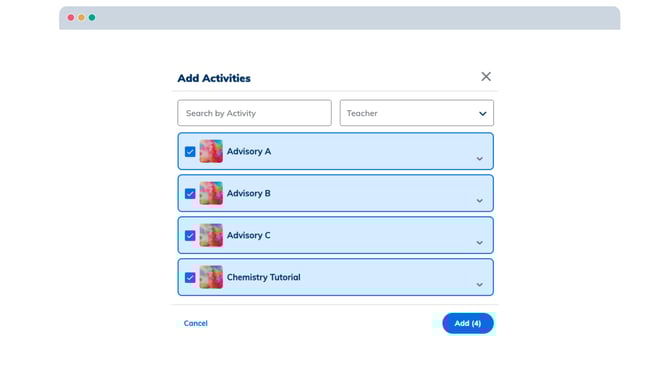
Why it Matters:
- Reduces administrative time for setting up FlexPeriods
- Grants flexibility in how many Activities can be added at one time
- Gives Teachers the ability to add multiple Activities they are responsible for to a period at one time
Students only see available activities for FlexTime Registration:
Students want to know which FlexTime activities they can register for and visibility into why they cannot register for others. Now, Students will see the remaining seat count for available activities and greyed-out activities when the activities are full or restricted.
Who's it for?
Students who want more visibility into why they cannot register for a particular FlexTime Activity.
How it Works:
Students:
- Navigate to MyTools and click on the FlexTime Tab
- Click the Register button
- Observe which activities are available
.png?width=670&height=377&name=Inline%20-%20Image%20(3).png) Why it Matters:
Why it Matters:
- Empowers students to select Activities based on availability
- Provides context to Students and Teachers why a Student cannot register for particular activities
Find Any Student in MyClass:
Not every student that you assign hall passes or behaviors to will be on your class lists, and that should not limit you from finding that student quickly in MyClass. Now, Teachers can search for students in My Class even when no user list is selected, and assign them any actions.
Who's it for?
Teachers who need to quickly and efficiently assign actions to any student in the school without leaving MyClass.
How it Works:
- In MyClass, enter the name of a student in the search bar
- Select the student and assign an action just as you would for a student on your User Lists
.png?width=670&height=377&name=Inline%20-%20Image%20(4).png)
Why it Matters:
- Teachers need the flexibility to find any student without having a User List selected
- Minimizes button clicks and the need to go to other areas of Minga when any action can be completed in MyClass
Teacher Notes for Students for FlexTime Activities:
When assigning or registering a student to a FlexTime Activity, Teachers sometimes need to give more context, instructions, or directions for the student, and this context also needs to be visible to the admin team.
Now, Teachers can send notes to students when assigning/registering them for FlexTime via My Class, and these notes will be available to students through notifications and to admins through reports.
Who's this for?
Teachers, Students, and Admins
How it works:
- In MyClass, select a student and either Register or Assign them to a FlexTime Activity
- In the Note to Student filed, enter the note that will be sent to the student (and accessible to them in their notifications)
- Admins can access the note in Reports by accessing the FlexTime History report
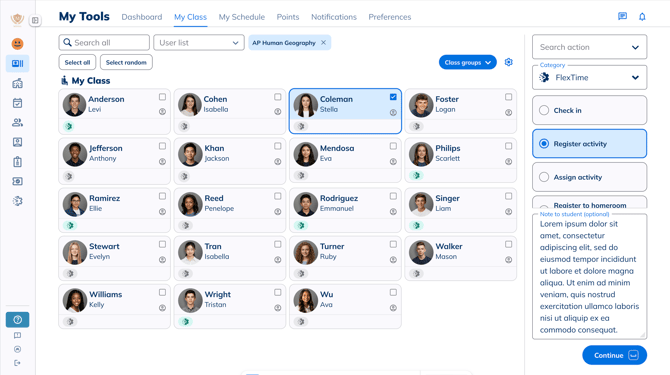
Why it Matters:
- More context is sometimes needed when teachers Register or Assign students to an activity
- Admins need more visibility into registrations or late arrivals and have this captured in reporting
Reporting Permission Options for Teachers:
Teachers often need access to reports so they can see how many hall passes, check-ins, or Behaviors they have assigned to a student or other teachers have assigned to them. Previously, an admin would need to add the teachers to a Report Viewer's list, making the process manual and prone to missing some teachers.
Now, a setting has been added in each Minga module to Allow teachers to view reports, giving teachers report viewing permission for that module in one click.
Who's this for?
Teachers who need to view reports, and Admins who want to save time in granting access.
How it Works:
Owners:
- Navigate to the Settings tab in the desired area of Minga (Hall Pass, Behavior, Points, Check-in, or FlexTime)
- Find the modules Settings (for example, FlexTime Settings) and toggle ON Allow teachers to view reports
.png?width=670&height=377&name=Inline%20-%20Image%20(5).png) Why it Matters:
Why it Matters:
- Admins want to grant report viewing access to Teachers in one click without having to manually add users
- Teachers want more visibility into how many actions they are assigning to their students
FAQs:
- Can teachers manage FlexTime activities created by other teachers? Yes. Admins can turn on a new setting that allows teachers to register and add students to any FlexTime activity, even if it was created by another teacher. This permission now applies across FlexTime, My Class, and student profiles.
- What do students see if an activity is full or restricted? Students will only see activities they are eligible to sign up for. Full activities appear greyed out with an “Activity full” tag. Restricted activities appear greyed out with a “Not available” tag. This helps reduce confusion during student registration.
- Is there a way to turn on report viewing for teachers for all modules in one click? No, granting report viewing permissions for teachers has to be done by an Owner on the Settings page for each individual module.