![Horizontal-10.png]](https://support.minga.io/hs-fs/hubfs/Horizontal-10.png?height=40&name=Horizontal-10.png)
Permission Level | Teachers
What is My Class?
My Class is a tool that simplifies classroom management, enables student engagement, and allows teachers to focus more on teaching.
My Class provides teachers with:
- A real-time overview of their class roster, like who is out of class and for how long.
- Two-click assignment of hall passes and behavior logging.
- Access to student profiles for instant insights like schedules, Flex registrations, and assigned behaviors.
In this article:
- How to Find Your Classes
- MyClass Key Features
- How to Assign and Manage Hall Passes
- How to Assign Behaviors
- How to Manage FlexTime
- How to Assign a Check-in
My Class Tutorial
Click 'Get Started' below for a quick walkthrough of the most important features that My Class offers.
How to Find Your Classes
All of your classes are typically automatically synced from your SIS, which means every class you manage is ready for you in Minga.
.gif?width=670&height=463&name=2025-02-10_14-49-53%20(1).gif)
- Log in to your Minga account.
- Click My Class on the navigation sidebar.
- Click the User List dropdown menu
- Click My Lists > Select your class list
Don't see any classes? Make sure you check all lists for all terms in the drop down. Lists should roster automatically from your SIS, ask your Minga Administrator if they are not. You can also create lists manually.
My Class Key Features
MyClass Settings and Display Options
Teachers need to quickly assess student information, behaviors, next Flex activity name at a glance. You can opt for the student card view, for a visual-based experience or a list view for a data-based experience.
Step by Step:
- Navigate to MyClass and select the gear icon next to the "Class Lists" button
- Select which settings you would like to enable: grid view or list view, show student photos or not, and sort students by last name, first name, check-in status, flextime, or by praise or guidances assigned.
There are also customizable display options, so that you can view what you need for each class.
Step by Step:
- Under the MyClass Settings, navigate to Display Options
- Toggle ON or OFF showing behaviors assigned to students, check in status, or their next FlexTime Activity
.png?width=670&height=377&name=Inline%20-%20Image%20(6).png)
User List Customization
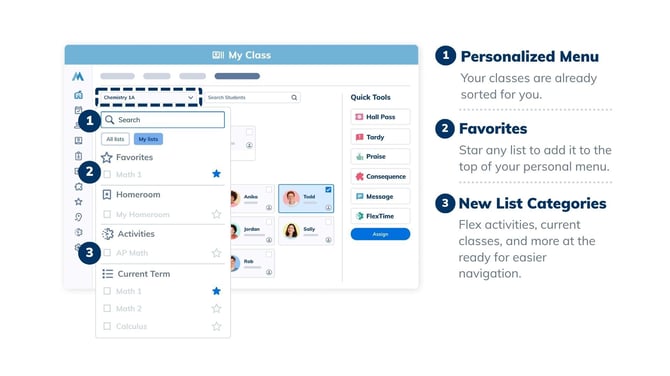
Teacher's User Lists are already organized by Homerooms, FlexActivities, Current Term, and My Lists. Teachers also have the option to mark certain user lists as Favorites for quick access!
Access Student Profiles
Teachers can view the profiles of students in their class lists. They cannot view the profiles of students not in their list.
- Schedules: Check where students are supposed to be during the current bell schedule.
- Flex Registrations: See upcoming FlexTime activities for a student.
- Behaviors: Review recent assigned behaviors
.gif?width=670&height=463&name=2025-02-10_14-53-52%20(3).gif)
💡 Admins must enable profile and schedule access in Settings for teachers to see these features
"Most Used With List" Actions
Frequently assigned actions are prioritized for each class:
-
- Open the actions drop-down
- Select "Most Used With List" to quickly assign common passes or behaviors
.gif?width=670&height=463&name=2025-02-10_14-53-52%20(2).gif)
Global Search
Manage students outside your class roster:
-
- Click the Search bar at the top of the My Class screen
- Type the student’s name
- Assign an action
📣 You can search for any student in the My Class Search bar, even with no User List selected. From there you can assign them any actions, such as behaviors and hall passes.
.gif?width=670&height=418&name=2025-02-18_16-14-21%20(1).gif)
Class Groups
Teachers often want to form discussion groups during class but want to keep students socially mixed and maximize classroom dynamics. You can also create No Party Groups to ensure that certain students are not grouped together—whether to avoid conflict, ensure equity, or balance skill levels. The generator respects these exclusions automatically.
Step by Step:
-
Click on the Class groups button
-
Select Create class groups to create new, random groups
.png?width=670&height=377&name=Inline%20-%20Image%20(7).png)
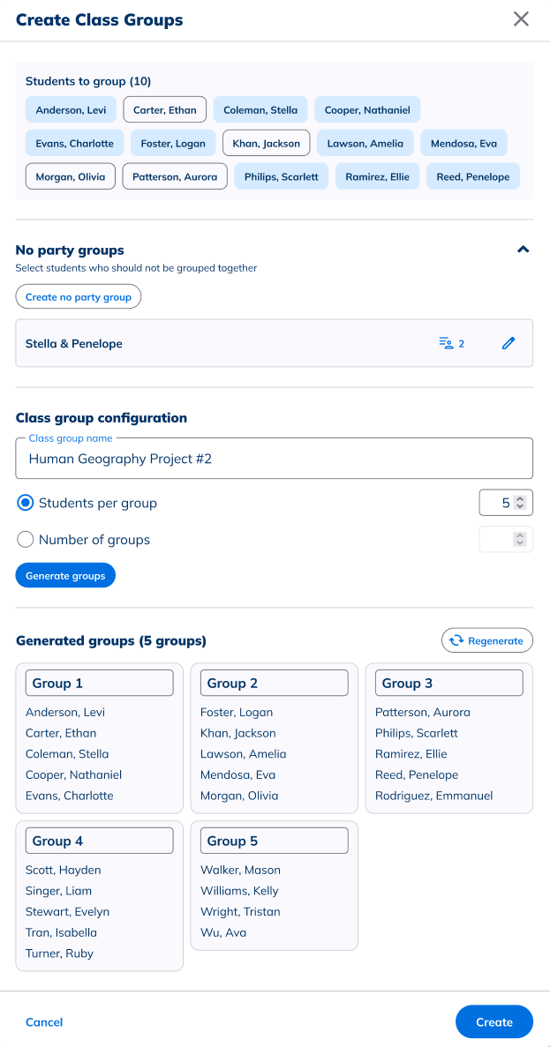
- To view groups that have already been created and saved, select View saved groups
- Then, select which group you would like to view
.png?width=670&height=377&name=Inline%20-%20Image%20(8).png)
-
To create No Party Groups, select Add no party group
- Create a name for the No Party Group and then select Add to add students to the list
.png?width=670&height=377&name=Inline%20-%20Image%20(9).png)
How to Assign and Manage Hall Passes
- Select a student from the class list
- Choose Hall Pass from the actions menu
- Assign the appropriate pass
- Track active or expired passes with color-coded icons
.gif?width=670&height=463&name=2025-02-10_14-53-52%20(1).gif)
Manage Pending and Expired Hall Passes
Pending requests and expired passes are easy to manage:
- Use the sound toggle in Settings to enable alerts for pending requests or expired passes
- Quickly approve or deny requests with one click
.gif?width=670&height=463&name=2025-02-10_11-07-51%20(1).gif)
If a hall pass type is set to be ended manually, it will be highlighted in red when it becomes expired. The timer will track how long the pass has been expired for, counting up until the pass is ended.
.png?width=670&height=425&name=Minga%20Support%20Mockup%20(23).png)
How to Assign a Behavior
You can reward and report student behaviors with the Praise and Guidance behavior options set up by your school in just a few clicks.
.gif?width=655&height=452&name=2025-02-10_14-53-52%20(2).gif)
- Select your class and click a student
- Choose a behavior from the category drop down or use the search bar
- Select the behavior and add a note if required
- Click assign (or hit the space bar)
Managing FlexTime from My Class
Flex periods in Minga operate nearly identically to your typical classes. Load the class roster like any other class. Additionally, you can assign or register your students to any Flex activity, view their check-in status, and check in your students, all from your MyClass Dashboard.
Register or Assign a Student to a Flex Activity
Students can be assigned (required to attend) or registered (signed up to attend) a Flex activity at your school from My Class.
-
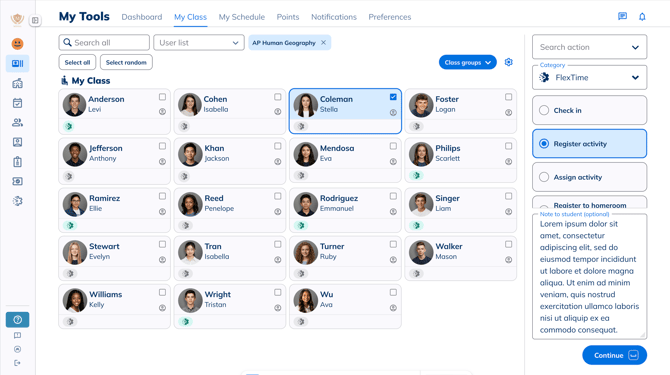
Select the student, or students, you would like to Register/ Assign
-
Select “FlexTime“ from the Category dropdown in the right panel
-
Select Register activity or "Assign" and click "Continue"
- Select the desired Flex Period and Activity and click "Register/Assign"
- Optional: Teachers can send notes to students when assigning/registering them for FlexTime in MyClass. These notes are accessible to students in their notifications and to admins in reports.
To Check-in a student to a Flex Activity:
- Select the appropriate list from "My Activities"
- Select the student, or students, you would like to check-in
-
Click “FlexTime“ from the "Search Action" dropdown in the right panel
-
Click "Check-in" and then select "Check in" or "Check in as Tardy" in the bottom right

To view a students Check-in status for a Flex Activity:
-
Navigate to “My Class“ and select the required user list.
-
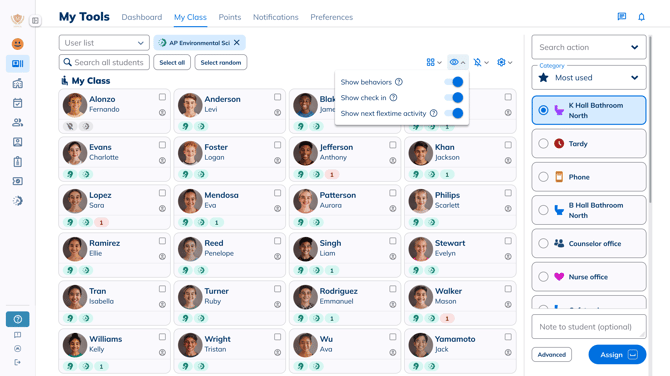
Click on the “Show/hide info” setting icon and turn ON the check in and flextime activity toggles.
-
View the status on the student cards
How to Assign a Check in
Assign a check in reason right from your MyClass dashboard for a seamless, one stop shop for your day to day classroom management.
-
Select the appropriate User List
- Click on the student, or students, that you would like to check in
-
Select “Check in Reason“ from the category dropdown in the right panel
-
Pick the reason and click the "Check in" button
.png?width=670&height=377&name=Check%20in%20reason%20(1).png)